

CandorIQ + DocuSign Integration
Send and sign candidate offer letters using DocuSign without leaving CandorIQ.

Overview
CandorIQ's DocuSign integration makes it easy to collect electronic signatures for candidate offer letters—all from within your existing hiring workflow.
By connecting your organization's DocuSign account, you can send offer letters for signature directly from CandorIQ and eliminate the need to download, upload, or manage documents across multiple systems.
The integration streamlines the final stage of the hiring process, helping recruiting and HR teams move candidates from offer to acceptance faster while maintaining the security, compliance, and familiarity of their existing DocuSign environment.
In this guide, we'll walk through how to connect your DocuSign account and start sending candidate offer letters for signature in just a few minutes.
How to integrate with DocuSign
Connecting your DocuSign account to CandorIQ only takes a minute. Once connected, you'll be able to send candidate offer letters for electronic signature using your organization's existing DocuSign account.
From the Integrations page, locate the DocuSign tile and click Connect. You'll be redirected to DocuSign to authorize CandorIQ to send signature requests on behalf of your organization.
After granting access, you'll be returned to CandorIQ, where the integration will appear as connected.
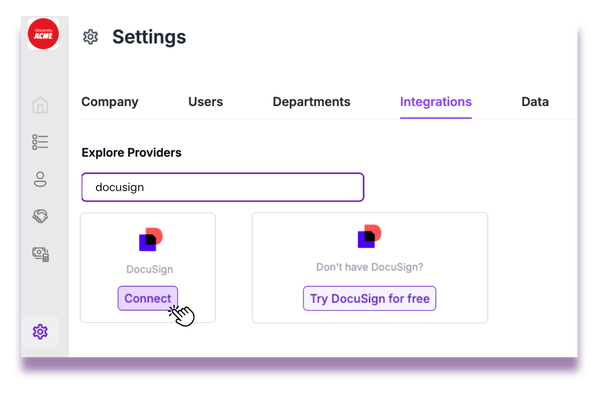
From your CandorIQ homepage:
Settings → Integrations → DocuSign → Connect → Authorize in DocuSign
How to use your DocuSign integration
Using your DocuSign integration is just as simple. Once you've created a candidate and generated their offer letter, you're ready to send it for signature.
Open the candidate's offer, review the details, and generate the offer letter if you haven't already. When the offer is approved and ready to send, click Send with eSign to send the document through your connected DocuSign account.
CandorIQ automatically prepares the document for signature before sending it to DocuSign. The candidate will then receive a standard DocuSign email prompting them to review and electronically sign their offer letter.
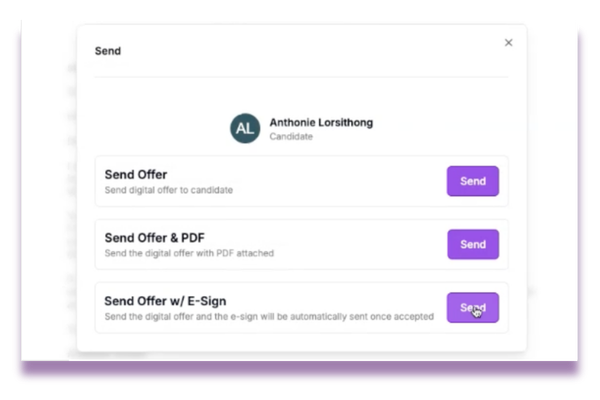
From your CandorIQ homepage:
Candidate → Offers → Select Candidate → Generate Offer Letter → Send with eSign
Additional notes
- Use your organization's existing DocuSign account—no additional login is required after connecting.
- Offer letters are delivered through DocuSign's secure email signing experience.
- Multiple recipients can be included on a signature request when needed.
- If you ever need to disconnect CandorIQ from DocuSign, you can revoke access directly from your DocuSign account settings.
Support
The process is designed to be very straightforward and self-serve, but if you find yourself needing support, please reach out to your customer success manager.
Ready to modernize your workforce and compensation strategy?
See how CandorIQ brings workforce planning and compensation together with AI.